


The presentation of your documentation matters just as much as its content. An image instead of a plain white background is just another way to reinforce your brand identity, enhance readability, and create a cohesive look across reports, letterheads, or marketing materials.
The best part? You don’t need advanced design skills to achieve this. Just follow our guide.
Why Add a Background Image in Word?
A background image in Microsoft Word can elevate your document’s visual appeal, making it perfect for:
- Professional templates (e.g., certificates, resumes).
- Branded business materials (flyers, brochures).
- Creative projects (invitations, posters).
- Adding a subtle watermark for document security.
How to Insert a Background Image in Word
Follow these steps to add a background image directly via Word’s built-in tools.
Step 1.
- Open your Word document.
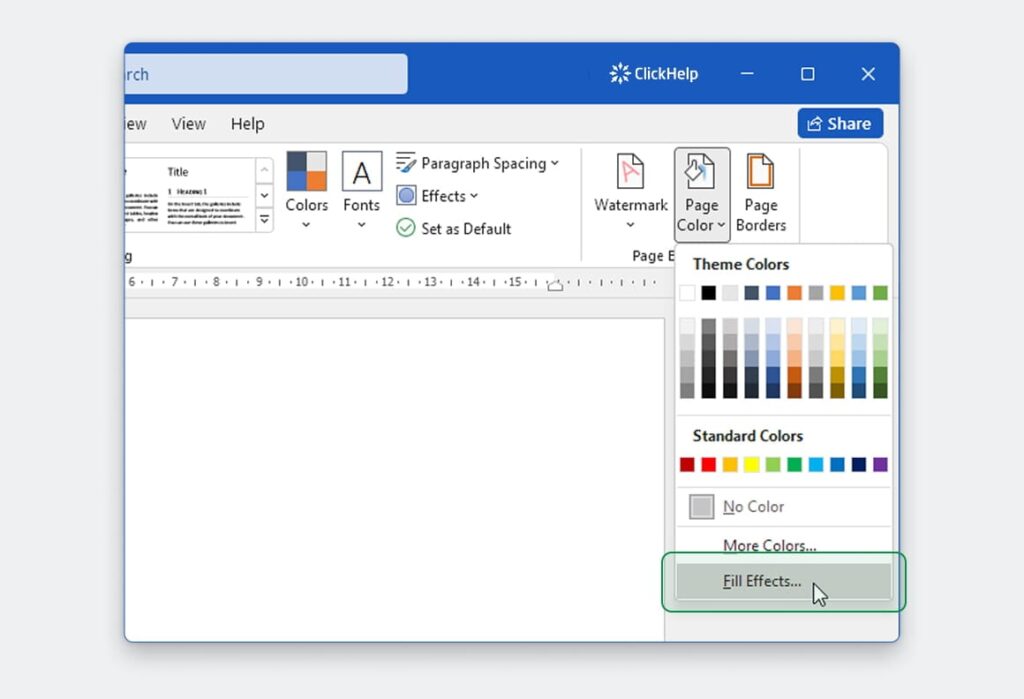
- Go to the Design Tab → Page Color → Fill Effects.
Step 2.
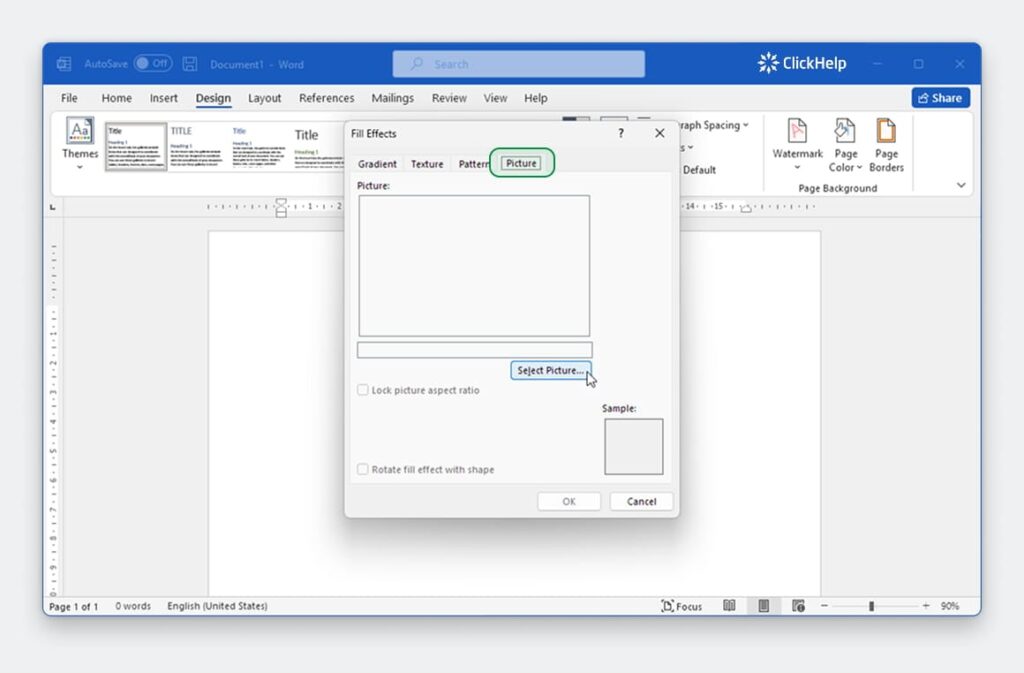
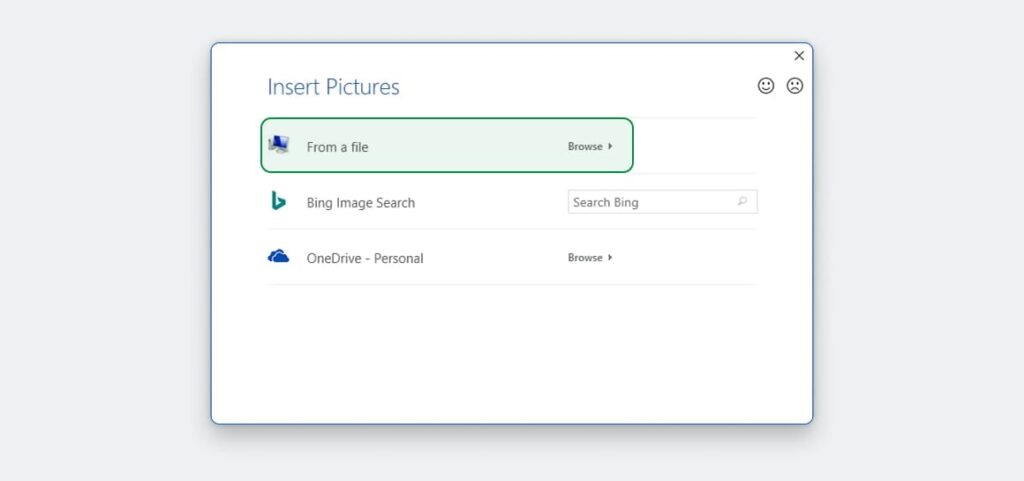
- In the Fill Effects window, click the Picture Tab → Select Picture.
- Choose your image (logo, or subtle texture).
- Adjust transparency (20-30%) so text stays readable. Your words shouldn’t duel with the background!
Step 3.
Backgrounds in Word might not print by default. To fix this:
- File → Options → Display → Check “Print background colors and images”.
- Save as a .dotx Template File so you can reuse it forever. Future you will high-five present you.
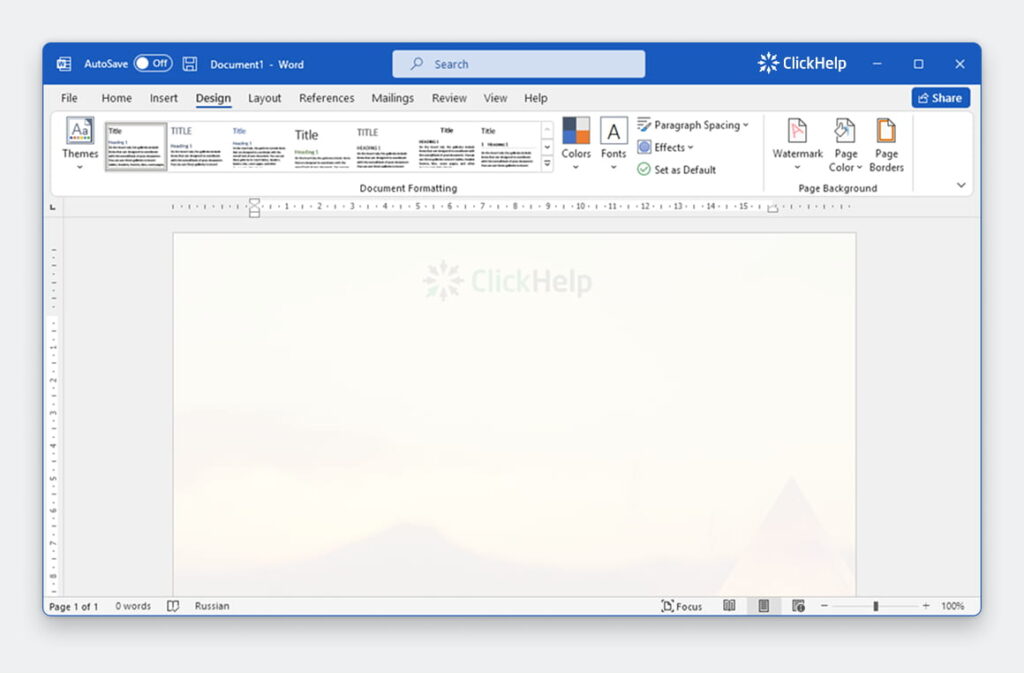
The result.
Avoid These
- Busy backgrounds. Keep images muted or abstract.
- Low-res pic. Use high-resolution files (300 DPI+) for crisp printing.
- Forgetting margins. No text should cuddle the edges.
How to Adjust and Format Your Background
After inserting the image, customize it with these options:
- Transparency: Reduce opacity to avoid distracting from text.
- Position: Stretch, tile, or center the image.
- Color: Apply filters via Format Picture > Color.
FAQs About Word Backgrounds
Q: Background doesn’t appear when printing.
A: Enable Print Background Colors/Images in File > Options > Display.
Q: Can I use a background image as a watermark?
A: Yes! Go to Design > Watermark > Custom Watermark > Picture Watermark.
Q: How do I remove the background later?
A: Go to Design > Page Color > No Color.
Q: Why won’t my background image load?
A: Check the file format (.jpg, .png) or restart Word.
Conclusion
As you experiment with backgrounds, remember: great design is subtle but intentional. Let your templates work quietly in the background (pun intended!) to better your message, not overshadow it.
Create professional documentation with custom background images and visual styling in ClickHelp. Try our free trial or book a demo to see how easily you can enhance your documentation’s visual appeal without complex design skills.
Good luck with your technical writing!
ClickHelp Team
Author, host and deliver documentation across platforms and devices